-4.png?width=100&height=75&name=Wordnerds%20Logo%20Yellow%20and%20Black%20On%20Transparent%20(RGB)-4.png)
Exporting verbatim
From your 'explore' page, navigate to 'inbox'. Select the filters you want to apply, whether that's just looking at the verbatim from a particular theme or category for example. Then hit the 'export' button in the top right of the screen. It looks like this:

You'll be asked to give your export a name. When your data is ready, you'll see the message 'download ready' on the bottom of the screen:
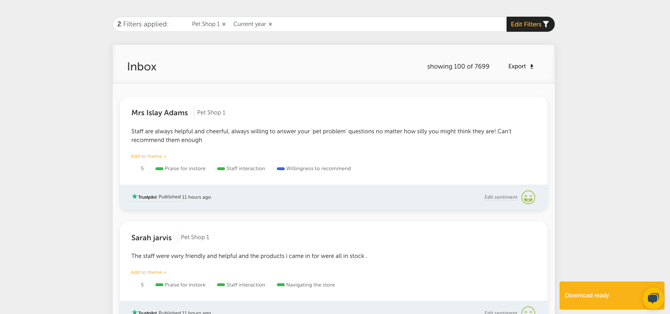
Note: the export will download in csv format and the columns you get will depend on what has been uploaded but will likely look something like this:

Exporting your data grouped by themes/topics
The best place to do this is trending but it is possible to export this from a visualisation too. As before, navigate to 'trending' and select your filters. Above your trending table you will see an export function in the top right:

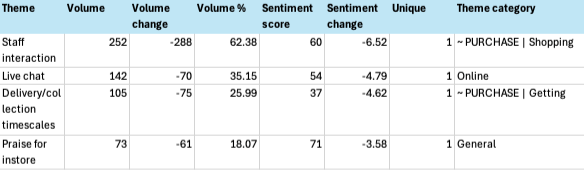
With themes, you have the option of exporting the 'posts' or 'table'. The 'table' export is a direct export of the data included in your trending table view on screen and looks like this:
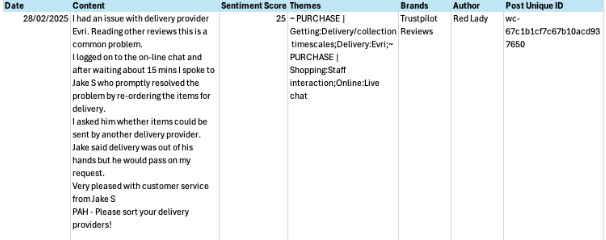
If you select 'posts' your export will include the actual verbatim and look something like this:
 ✍️ Article written by: Lyndsay, Senior Customer Success Manager
Still in need of some help? Give us an email on support@wordnerds.ai or reach out to your CSM directly.