-4.png?width=100&height=75&name=Wordnerds%20Logo%20Yellow%20and%20Black%20On%20Transparent%20(RGB)-4.png)
- Using the Keyword Search filter
- Using the Date Range filter
- Using the Sentiment filter
-
Filtering by 'Regions', 'Brands', 'Competitors' and 'Themes'
What are 'Filters' in Wordnerds?
Filters are basically the traits tied to the content data you want to check out in your project. When you use them, they help you fine-tune your dataset in the best way possible.
This means you can benefit from having all of your data in one place, but with the flexibility to narrow down to a specific dataset when needed. And, because you are able to create custom 'Themes', you'll find that you're able to use these to really customise how your data is filtered.
In the Wordnerds platform, you can refine your dataset by...
Universal Filters:
- Keyword Search (without needing to create a Keyword Theme)
- Date Range
- 'Region', 'Brand' and 'Competitors' (these are set at the data input/upload stage)
- Sentiment
Custom Filters:
- Upload Themes (metadata you have included with your data input/upload)
- Definition-Led and Keyword Themes (classifications you have created)
How to select and apply filters
You will be prompted to apply filters when you enter any analysis feature in the platform. By default, the filters will be set to include all data from the previous month.
The filter page
As well as the universal filters, the filter page will show the Theme Categories, and Themes within them, that make up the custom filters that are specific to your project. At the top, in the filter bar, you can see the filters that have been applied based on your selections.
The filter page will look something like this:
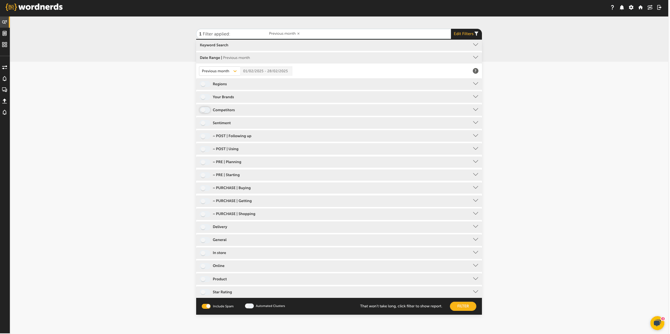
Before getting started, it's worth understanding how filters interact with each other.
Filters applied in Keyword Search, Date Range, Regions, Brands, Competitors and Sentiment work independently, they don't affect each other.
Themes work differently. By default, all Themes are included. But as soon as you select any Theme, at category or individual level, all other Themes are excluded unless you manually add them back in.
How to use the Keyword Search filter
Keyword Search is great for...
- Quickly and easily filtering to specific words or phrases as a one-off, without needing to build a keyword theme
- Exploring how frequently specific words or phrases are used in your data to decide if it is worthwhile building a keyword theme to classify and track an issue based on that vocabulary
- Exploring the different ways specific words or phrases are used in your data to help you train a new context theme to classify and track an issue based on the context in which that vocabulary is being used
To create a Keyword Search filter...
- Create your filter rules by typing in the words and phrases you want to filter by in the Includes bar, pressing ENTER after each word or phrase to separate them
- From the drop-down on the Includes bar, select whether you want your rules to work on an 'AND' or 'OR' basis
- If you are aware of ways that the keywords or phrases you have put in the Includes bar could be used in a way that you don't want to include, add to your filter rules by typing in the words and phrases you want to exclude in the Excludes bar, again pressing ENTER after each word or phrase to separate them
The Keyword Search filter will look something like this:
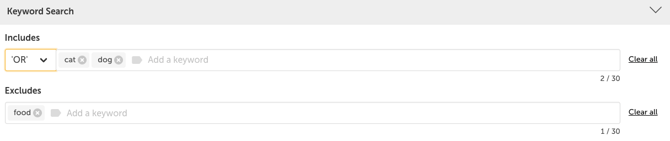 In In this example, I have chosen to filter to posts that contain the keywords 'cat' OR 'dog, but do not also contain the word 'food'.
Using the Date Range filter
By default, the date range filter will be set to 'Previous Month'. To edit this, expand the filter using the down arrow. You can then choose to select a date range from the drop-down options, or to select a custom date range.
The drop-down date range options will look like this:
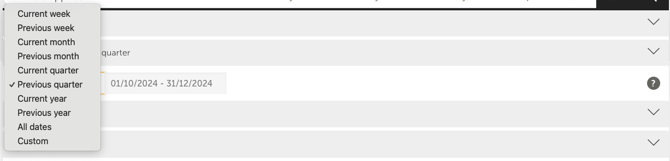
To filter by a custom date range, choose Custom from the drop-down options.
From here, you can select custom calendar periods, or, if you have added your organisation's fiscal calendar to the project settings, by custom fiscal periods.
The custom calendar periods options will look something like this:
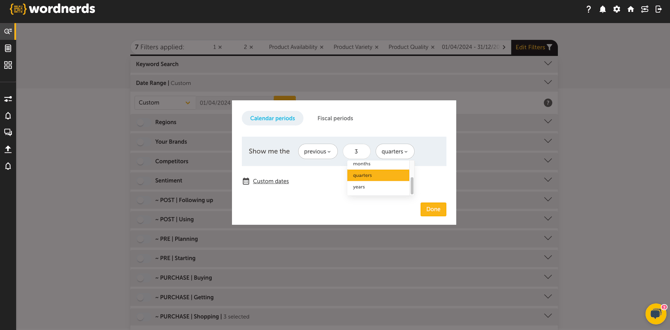
To filter by a custom date range, click the Custom dates button/calendar icon and enter your date range using the calendar. Your screen will look something like this:
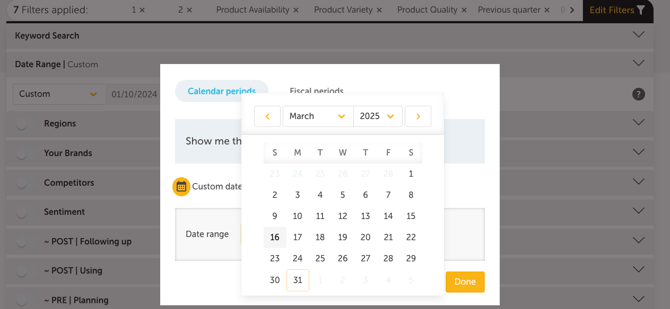
Click Done once you have selected the Date Range filter you want to apply.
Using the Sentiment Filter
'Trending', 'Topic Analysis' and 'Inbox' allow you to filter by sentiment.
Filtering by sentiment is great for...
- Focusing your analysis on a particular sentiment group, for example, content that is very negative in sentiment.
To filter by sentiment, simply toggle the sentiment category/categories you want to filter to using the emotion/s (ranging from very positive to very negative).
The sentiment filter will look something like this:

Filtering by 'Regions', 'Brands', 'Competitors' and 'Themes'
‘Regions’, ‘Brands’ and ‘Competitors’ are all defined when your data is first added to the project.
The remaining filters on the filter page are driven by your ‘Themes’.
For ‘Regions’, ‘Brands’, ‘Competitors’ and ‘Themes’, you can choose to filter at whole-category level or by individual options.
AND/OR rules for combining filters: when you select multiple filters from the SAME category, they work on an ‘OR’ basis. So if you pick two filters in the same theme category, your results will include entries that match either X OR X.For example, product quality OR use by dates. A post only needs to mention one of these to be included.
When you select filters from DIFFERENT categories, they work on an ‘AND’ basis. In this case, your results will only include entries that match X AND X. For example, delivery AND packaging, so the platform will show verbatim that mention both delivery and packaging.
Filtering at category-level
To filter at category level, simply use the toggle next to the category name. It will look something like this:

In this example, I have toggled on the entire 'Star Rating' category, and all filters within this category have been selected as a result. I can also see the number of individual filters that have been selected ('5 selected').
To select filters individually from the SAME category...
Expand the category using the down icon and toggle the individual filters. Selecting multiple filters within the same category will look something like this:

In this example, I have chosen to select the '1' and '2' filters in the 'Star Rating' category ('2 selected'). Because these filters are within the same category, once they are applied, my results will show data matched to either the '1' OR '2' filter.
If you notice a yellow dot next to a theme filter, as shown in this example, next to 'Value for money', this means the theme is processing or updating. You can still select the theme, but you should refresh your results once the theme has stopped processing. You can check the status of the theme in the Themes page.

Selecting individual filters from categories with over 10 filters...
If there are 10+ filters within a category, instead of the toggle off/on view, the filters will show as a drop-down, sorted alphabetically. Click on the filters you want to select, and you'll see them move to the filter selected bar. It will look something like this:
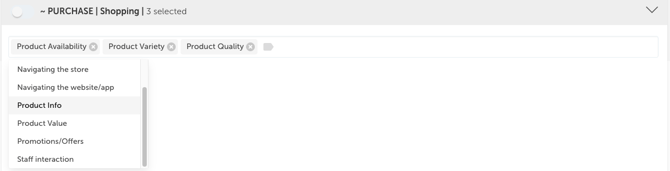
In this example, I have selected three filters from within the 'PURCHASE | Shopping' category ('3 selected'). Because these filters are within the same category, once they are applied, my results will show data matched to the Product Availability' OR 'Product Variety' OR 'Product Quality' filter.
To select multiple filters from DIFFERENT categories...
Follow the same steps as above to select either whole categories or individual filters across the different categories. Selecting multiple filters from different categories will look something like this:
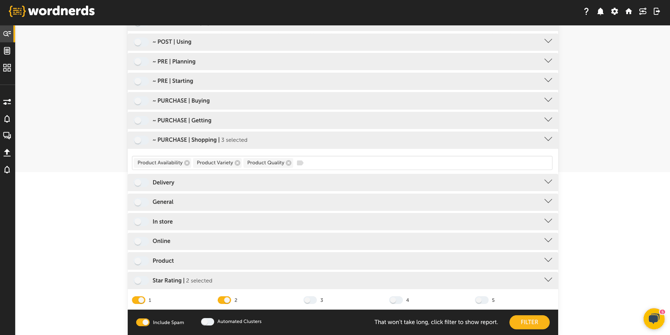
In this example, once applied, my results will show data that is matched to any of the 3 filters selected in the PURCHASE | Shopping category ('Product Availability', OR 'Product Variety', OR 'Product Quality') AND that is also matched to any of the filters selected in the Star Rating category ('1' OR '2').
Filtering to Include or Exclude Spam
Content from 'Authors' (unique users) who have 15 or more pieces of verbatim attributed to them in a 24-hour period are marked as 'Spam Authors' in the Wordnerds platform, and you can opt to ignore their content by keeping the 'Include Spam' filter toggled off.
When you are ready to confirm and apply your filters, click the FILTER button.
Saving and editing filters
Once you have applied your filters, they will be saved for your session. This includes if you switch between analysis tools, saving you from the need to reapply the same filters each time.
You'll always be able to see what filters are applied by viewing the filter bar at the top of your screen. The filter bar will look something like this:

To edit the filters that have been applied, click the Edit Filters button on the filter bar, or click the 'X' icon next to the specific filter if you want to remove it; either action will take you back to the filter page to make and apply your changes.
💡 Tip: Although your filters will be saved during your session, they will reset each time you log out and back in. So, to save a set of filters you want to return to, bookmark or save the URL once you have applied the filters and you can return to the saved view/filters again, and again.
 ✍️ Article written by: Lyndsay, Senior Customer Success Manager