-4.png?width=100&height=75&name=Wordnerds%20Logo%20Yellow%20and%20Black%20On%20Transparent%20(RGB)-4.png)
- What are Definition-Led Themes?
- Why use Definition-Led Themes?
- Before you start
- Step 1: Create your theme
- Step 2: Describe your theme
- Step 3: Review your AI-generated definition
- Step 4: The rebuild (background process)
- Step 5: Review your rebuilt theme
- Step 6: Enable your theme
- Tips for writing good definitions
- Next steps
What are Definition-Led Themes?
Definition-Led Themes let you build classifications by describing what you're looking for in plain English. You tell the platform what concept or idea you want to capture, and it builds a working definition from your description. The platform then uses AI and Wordnerds technology to find all the different ways that idea shows up in your feedback, and creates a theme that can be historically applied.
They work particularly well for capturing nuanced or contextual feedback, concepts that are easier to explain than to pin down with keywords alone. If you're looking for something that's more of a feeling or experience than a specific phrase (like "a peaceful night's sleep" or "feeling rushed"), Definition-Led Themes are your best option.
Why use Definition-Led Themes?
Definition-Led Themes are useful because they're intuitive. You describe what you're looking for the way you'd explain it to a colleague, and the platform does the work of understanding your intent and finding matching feedback across your data. This makes them ideal for:
-
Capturing abstract concepts or feelings
-
Finding feedback that uses varied language to express the same idea
-
Building themes around customer experiences rather than specific keywords
-
Themes that need nuance and context to define properly
If you're looking for something very specific, like a product name or a distinct keyword, you might want to use Keyword Themes instead. But if you're after a concept, Definition-Led Themes are the way to go.
What to expect
The process is straightforward and broken into a few clear steps. You'll describe your what you want your theme to capture, preview how it matches against your data, have the chance to refine it if needed, and then enable it live. The platform handles the heavy lifting of building and scaling your theme in the background, you just need to describe what you're after.
Before you start
Before diving in, it helps to have a clear sense of what you want to capture. Think about the concept or idea you're trying to find in your feedback. For example:
-
A feeling or experience (like "feeling rushed by staff" or "a peaceful night's sleep")
-
A specific problem or pain point (like "difficulty finding information" or "long wait times")
-
A positive outcome (like "exceeded expectations" or "friendly interaction")
-
An aspect of your product or service (like "easy to navigate" or "value for money")
The clearer your thinking is at this stage, the better your definition will be. You don't need the perfect wording, just a sense of what you're after.
Step 1: Create your theme
Navigate to your themes listing page, create a category or open an existing one, and select "Add theme".
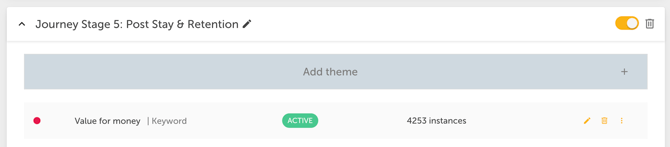
Give your theme a clear, concise name. This should reflect the concept you're capturing, something you and your team will recognise immediately.
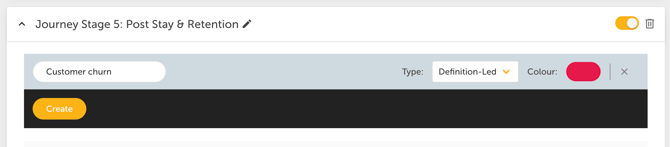
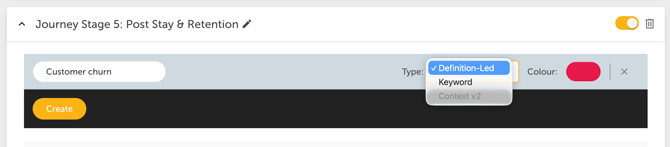
In the dropdown, select "Definition-Led" as your theme type.
Press Create. You're now taken to the definition step.
Step 2: Describe your theme
This is where you tell the platform what you're looking for. Write a short, natural language description that captures the essence of your theme.
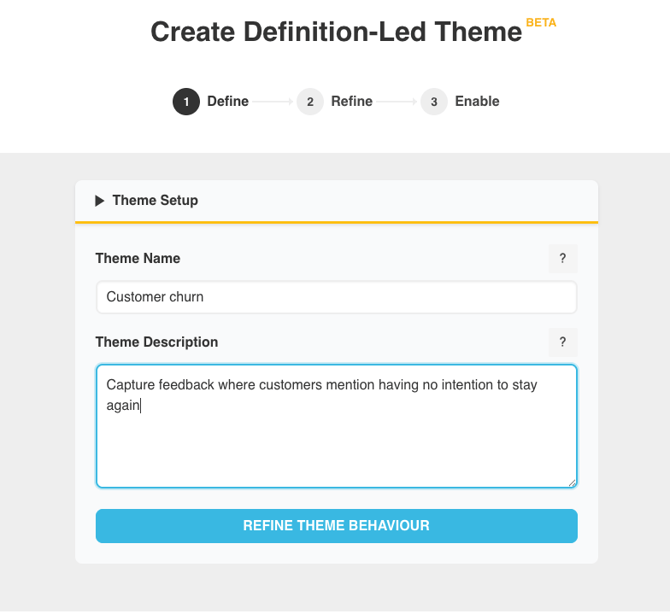
Be specific about what you're trying to find, but don't worry about being perfect. For example:
- Instead of: "Customer feedback"
- Try: "Feedback where customers mention the bed was comfortable and contributed to a good night's sleep"
Or:
- Instead of: "Bad experience"
- Try: "Customers feeling rushed or hurried during the check-in or ordering process"
Once you've written your description, press "Refine theme behaviour". What happens next is that the platform uses AI to take your theme name, your description, and the context of your data to generate a working definition for your theme. This usually takes around 20 seconds.
Step 3: Review your AI-generated definition
The platform has now created a definition based on your description and is showing you a preview of how it would match against your data.
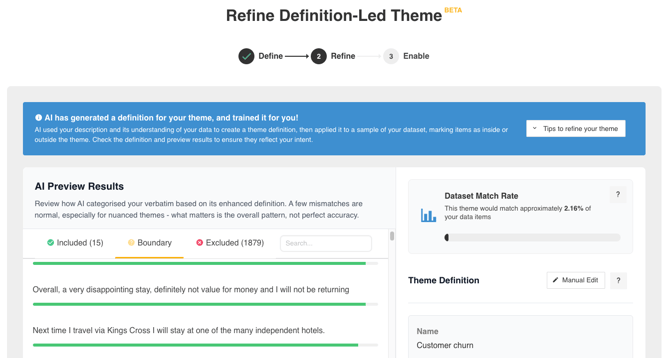
At the top, on the right you'll see the data set match: This shows you what percentage of your data items would be matched by this theme. Is it what you expected? If you thought you were capturing a fairly niche idea and the match is 80%, something might be off.
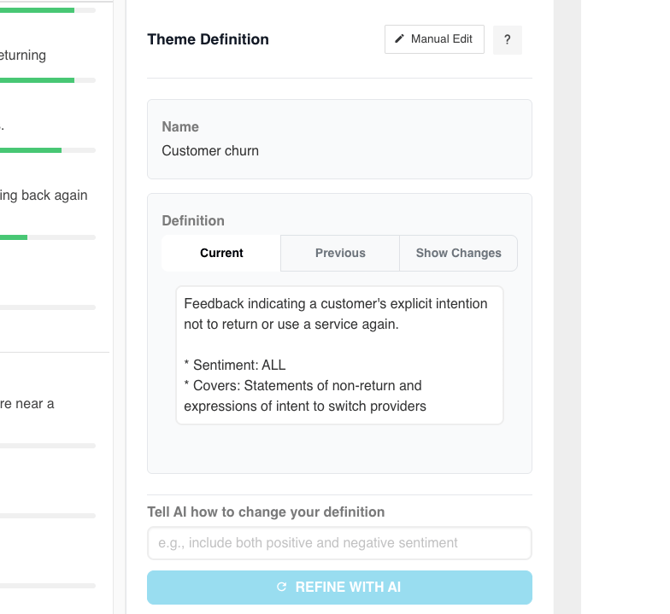
Under that you'll see your generated definition: This is what the AI has created based on your input. Read it carefully, does it match what you meant?
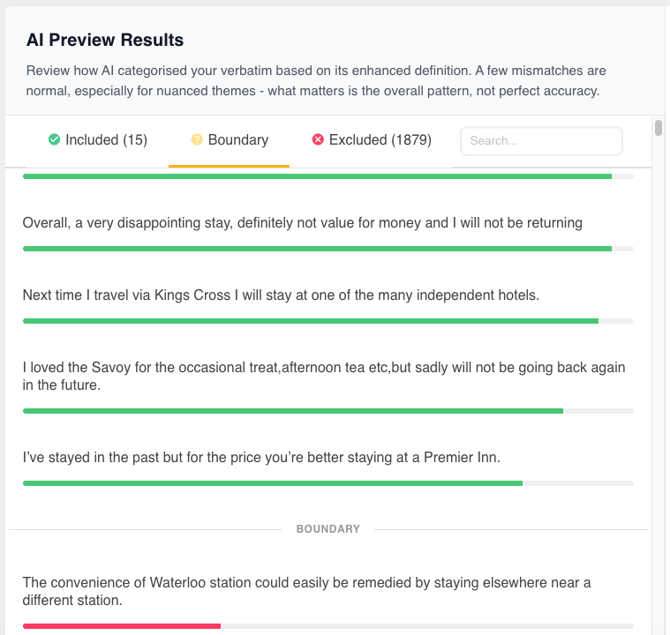
To the left you'll see a preview of results divided into two sections:
Included: Verbatim that the theme has matched
Excluded: Verbatim that was just missed
Reviewing your results
Scan through both sections. Do the included items feel right? Do you understand why the excluded items were left out?
The goal here is to get a sense of the theme boundary, where it's matching and where it's stopping. You're not looking for absolute perfection, just a good pattern that reflects your intent.
Making tweaks
If you'd like to adjust your definition, you have two options:
Option 1: Manual edit
Click "Edit definition manually" and make direct changes to the definition. For example, if you realise you want to exclude references to furniture, you could add a note saying "exclude furniture" or be more specific like "exclude pillows".
Option 2: AI prompt
Click "Use AI prompt to refine" and describe the change you'd like to make. For example, "exclude any mentions of pillows" or "make this broader to include any mention of comfort, not just the bed". The AI will adjust your definition based on your feedback.
Once you've made your changes, the preview will update.
Knowing when to stop 💡
It's easy to get caught in the loop of tweaking your definition endlessly. The boundary between what's included and excluded will never be perfect, and that's okay. You're aiming for a good, clear pattern, not absolute precision. If you've made a few tweaks and the theme feels like it's capturing what you meant, you're ready to move on.
When you're happy with your definition, press "Next" to proceed to the rebuild.
Step 4: The rebuild (background process)
Behind the scenes, the platform is now rebuilding your theme using Wordnerds technology. This takes around 3 minutes (sometimes shorter for less complex themes), and it's what allows your theme to scale across your entire dataset reliably.
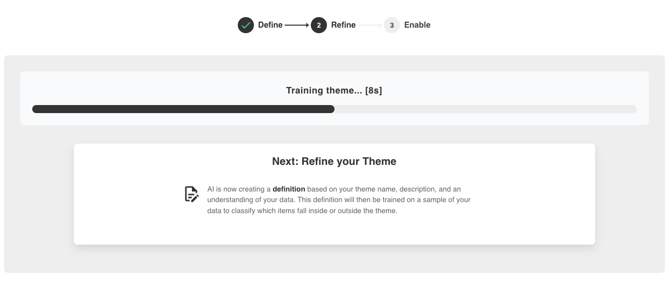
You don't need to stay on this page while it rebuilds. You can go back to your themes listing and create new themes in the meantime, then return to this one when you're ready.
What's happening?
In Step 3, you worked with an AI model to define your theme concept. That's great for speed and for working with smaller samples of data. However, scaling that model across your entire dataset efficiently requires different technology.
So what we do is take the definition you've refined and rebuild it using Wordnerds' own technology. This allows us to:
- Handle larger volumes of data
- Scale the theme across all your feedback
- Apply consistent logic when you make future updates to the theme
The result is a more robust, performant theme that can grow with your data.
Step 5: Review your rebuilt theme
Once the rebuild is complete, you're shown a preview of how your theme performs using the Wordnerds model. This is the same type of review as Step 3, but with different underlying technology applied.
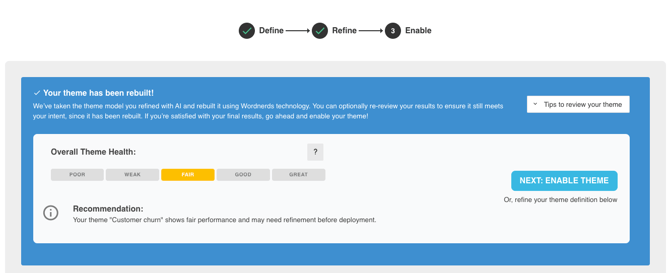
Understanding theme health
You'll see a "Theme health" score. This estimates how accurately the theme is expected to perform once it's enabled. The score tells you:
- Good: The theme is performing well and is ready to be applied to your full dataset.
- Fair: The theme is functional but might benefit from refinement. You can enable it, but consider reviewing the boundary before doing so.
- Unable to generate: This typically means your theme is either very niche (so few examples exist in your data to learn from) or very broad (so most of your data matches). In these cases, use your own judgment about whether to enable or refine further.
Should you refine again?
Look at the preview results. Do they still feel right? If the rebuild has changed the boundary in a way that doesn't align with your intent, you can go back to Step 3 and make further tweaks. Keep in mind that if you do, you'll need to rebuild again.
For most themes, the results after rebuild will feel very similar to your preview in Step 3. If you're happy with what you see, you're ready to enable.
Step 6: Enable your theme
Once you're satisfied with your theme, press "Enable theme".

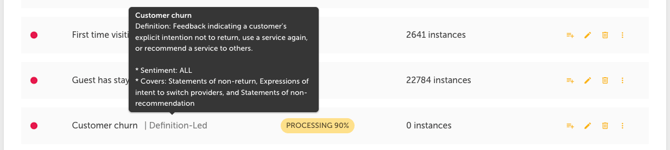
Your theme is now processing and will be applied to your full dataset. You'll see a progress indicator on your themes listing page.

Once processing is complete, your theme is live and ready to use. You can hover over it to see the definition that was created during the process.
Tips for writing good definitions
- Be specific: "Customers mentioning the bed was comfortable and helped them sleep well" is better than "good experience".
- Include context: If relevant, mention what aspects contribute to the idea you're capturing. For example, "quietness of the room, quality of the bed, and overall comfort" helps the platform understand the nuance.
- Describe the outcome or feeling: Focus on what you're actually trying to find, not just keywords. "Customers felt rushed during the ordering process" is more useful than "fast service".
- Avoid negatives where possible: Rather than "not slow", try "efficient" or "quick". The platform understands negation, but positive descriptions tend to work better.
Next steps
Once your theme is enabled, you can:
- Use it to categorise your feedback and generate insights
- View the data it's matched across reports and dashboards
- Update the definition if needed (the theme will rebuild automatically)
- Combine it with other themes to create layered analysis
If you want to refine a theme after it's live, simply select it from your themes listing and choose "Edit definition". The process is the same as creating a new theme.
 ✍️ written by: Katie, Customer Success Executive
Still in need of some help? Give us an email on support@wordnerds.ai or reach out to your CSM directly.